Creating a TimeOffLedger account is the first step toward managing employee leave efficiently. Once your account is set up, you’ll be able to configure your company, invite employees, create leave policies, and begin tracking time off in one centralized platform.
Before You Begin
Before creating your account, make sure you have:
- A valid email address.
- Access to your email inbox for verification.
- Your company or organization name.
- A secure password.
How to Create an Account
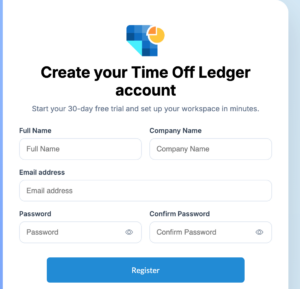
Follow these steps to create your TimeOffLedger account:
- Visit the TimeOffLedger website.
- Click Sign Up.
- Enter your full name.
- Enter your work email address.
- Create a secure password.
- Confirm your password.
- Accept the Terms of Service and Privacy Policy.
- Click Create Account.
If email verification is enabled, you’ll receive a verification email shortly after registering.
Verify Your Email Address
To activate your account:
- Open the verification email sent to your inbox.
- Click the Verify Email button.
- You’ll be redirected to TimeOffLedger.
- Sign in using your email address and password.
If you don’t receive the email within a few minutes, check your Spam or Junk folder before requesting another verification email.
Choosing a Strong Password
We recommend creating a password that includes:
- At least 8 characters.
- One uppercase letter.
- One lowercase letter.
- One number.
- One special character.
Avoid using common words, birthdays, or easily guessed passwords.
After Creating Your Account
Once your account has been created successfully, the next steps are:
- Set up your company profile.
- Configure working days.
- Add leave types.
- Invite employees.
- Create departments and teams.
- Configure approval workflows.
Completing these steps ensures your organization is ready before employees begin requesting leave.
Common Issues
I didn’t receive the verification email.
Try the following:
- Check your Spam or Junk folder.
- Make sure you entered the correct email address.
- Wait a few minutes and request a new verification email.
- Contact your email administrator if your organization blocks external emails.
The verification link has expired.
Verification links may expire after a period of time. Simply request a new verification email from the login page and follow the instructions again.
My email address is already registered.
If you see a message that your email is already in use, trysigning in instead. If you’ve forgotten your password, use the Forgot Password option to reset it.