Once your TimeOffLedger account has been created and verified, you can sign in to access your dashboard and begin managing employee leave, reviewing requests, or configuring your organization.
Whether you’re an employee, manager, or administrator, signing in gives you access to the features available for your role.
Before You Begin
Before logging in, make sure you have:
- A registered TimeOffLedger account.
- A verified email address (if email verification is required).
- Your email address and password.
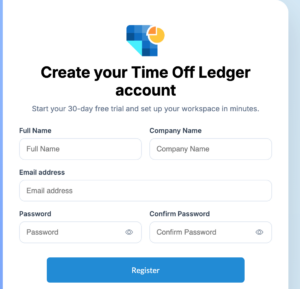
How to Log In
Follow these steps to sign in to your account:
- Navigate to the TimeOffLedger login page.
- Enter the email address associated with your account.
- Enter your password.
- Click Log In.
If your credentials are correct, you’ll be redirected to your dashboard.
Your Dashboard
After signing in, you’ll have access to your personalized dashboard.
Depending on your role, you may be able to:
Employees
- View your leave balance.
- Submit new leave requests.
- Check the status of pending requests.
- View upcoming company holidays.
- Update your personal profile.
Managers
- Review leave requests from team members.
- Approve or reject leave requests.
- View the team leave calendar.
- Monitor employee availability.
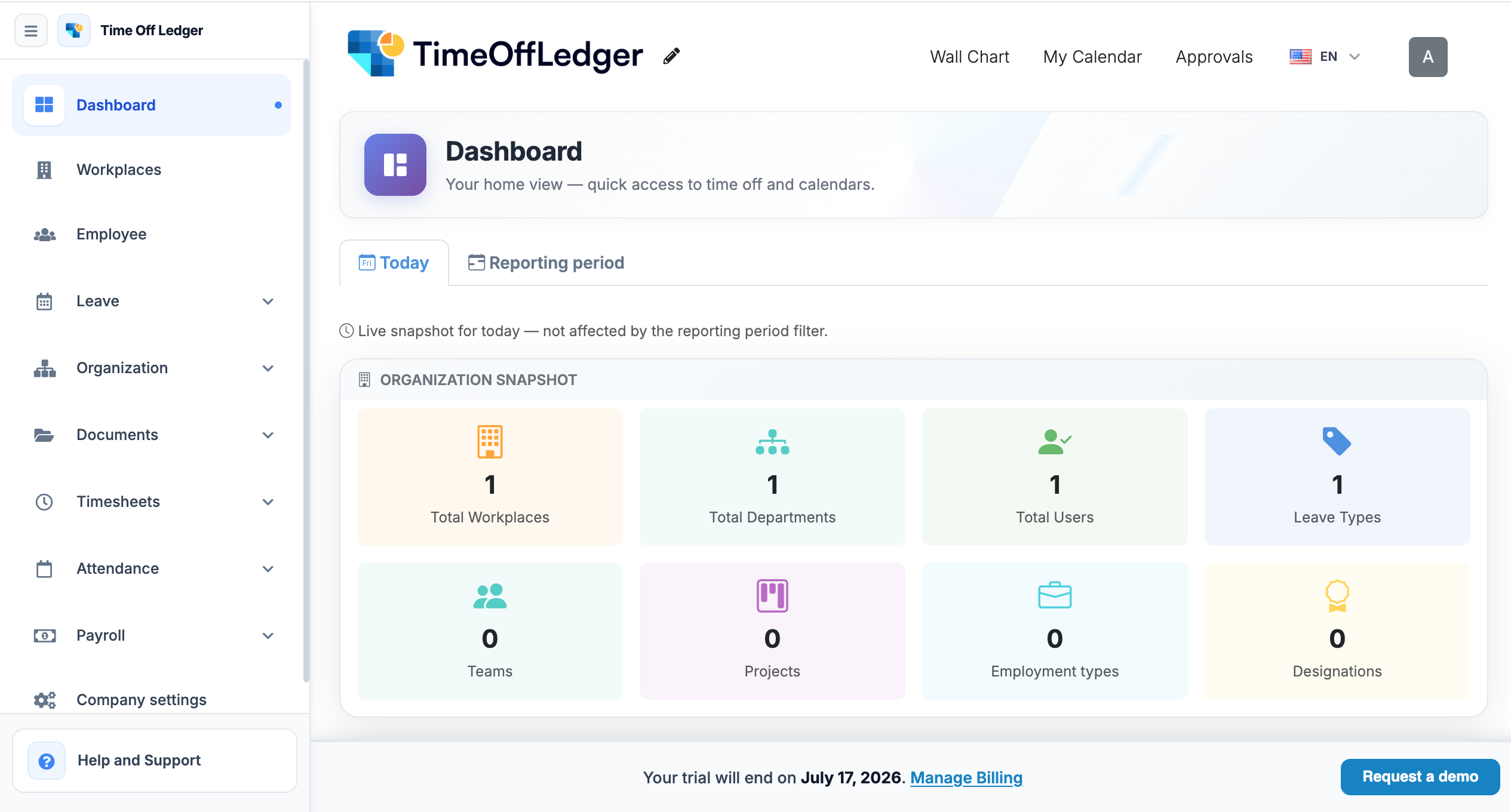
Administrators
- Manage employees and departments.
- Configure company settings.
- Create and edit leave policies.
- Manage public holidays.
- View reports and leave analytics.
- Configure approval workflows.
Keep Your Account Secure
To help protect your account:
- Never share your password with anyone.
- Always sign out when using a shared or public computer.
- Use a unique password that isn’t used for other online accounts.
- Update your password regularly if required by your organization.
Common Login Issues
Incorrect Email or Password
If you receive an error when signing in:
- Check that you’ve entered the correct email address.
- Ensure your password is typed correctly.
- Verify that Caps Lock is turned off.
- Try entering your password again carefully.
Forgot Your Password
If you’ve forgotten your password, select Forgot Password on the login page and follow the instructions to reset it.
For detailed instructions, see the Resetting Your Password article.
Account Not Verified
If you haven’t verified your email address, you may not be able to sign in.
Check your inbox for the verification email and follow the activation instructions. If necessary, request a new verification email.
Account Disabled
If your account has been disabled by your organization’s administrator, you won’t be able to sign in until access has been restored.
If you believe this is an error, contact your company administrator.