The Company Settings page contains your organization’s core information, including company details, contact information, and other general preferences.
Only users with Administrator permissions can access and modify these settings.
Before You Begin
Before updating your company settings, make sure:
- You have Administrator access.
- You have the correct company information available.
- You understand how changes may affect your organization.
Accessing Company Settings
Step 1: Open Settings
- Sign in to your TimeOffLedger account.
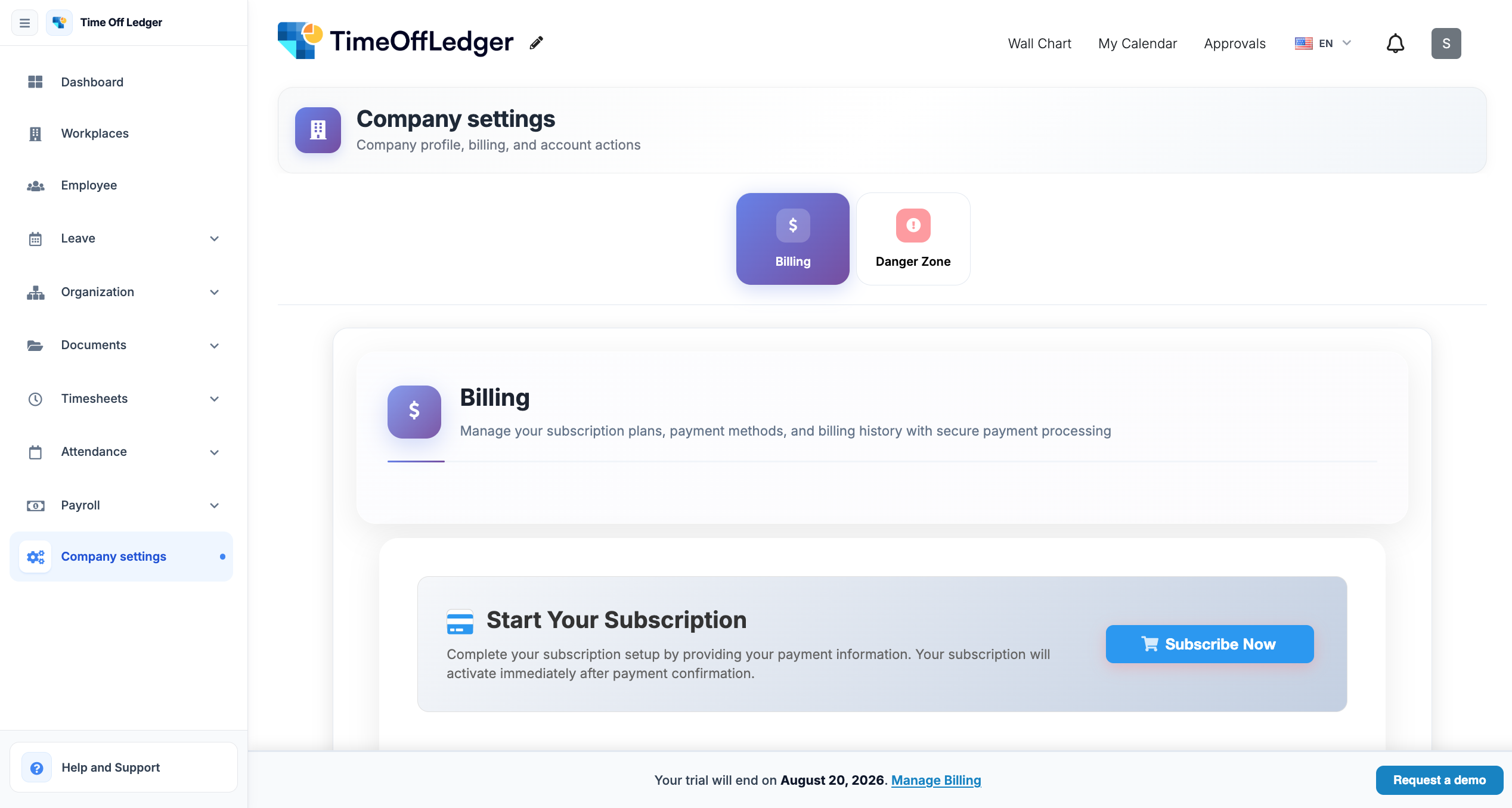
- Click Settings from the navigation menu.
- Select Company Settings.
Capture the Settings menu with Company Settingshighlighted.
Step 2: Update Company Information
You can update information such as:
- Company Name
- Company Logo
- Contact Email
- Phone Number
- Company Address
- Website
- Organization Size (if applicable)
After making your changes, click Save Changes.
Capture the Company Information form showing editable fields.
Step 3: Verify Your Changes
Once saved, review your organization profile to ensure the updated information appears correctly throughout the application.
Capture the updated Company Profile or dashboard.
Best Practices
- Use your official company name.
- Upload a high-quality company logo.
- Keep contact information up to date.
- Review company settings periodically.
- Verify all changes before saving.
Common Issues
Changes Are Not Visible
Refresh your browser or sign out and sign back in to ensure the latest settings are loaded.
Unable to Save Changes
Verify that all required fields have been completed and that you have Administrator permissions.
Incorrect Company Information
Double-check the entered details before saving. If necessary, edit the information again and save your changes.