Employee information can change over time. Whether someone changes departments, receives a promotion, updates their contact information, or is assigned a new manager, TimeOffLedger makes it easy for administrators to keep employee records accurate and up to date.
Keeping employee information current helps ensure leave requests are routed correctly, reports remain accurate, and approval workflows continue to function as expected.
Who Can Edit Employee Information?
Only users with Administrator permissions can edit employee profiles. Depending on your organization’s settings, employees may also be able to update certain personal details, such as their profile picture or contact information.
How to Edit an Employee
Follow these steps to update an employee’s information:
- Sign in to your TimeOffLedger account.
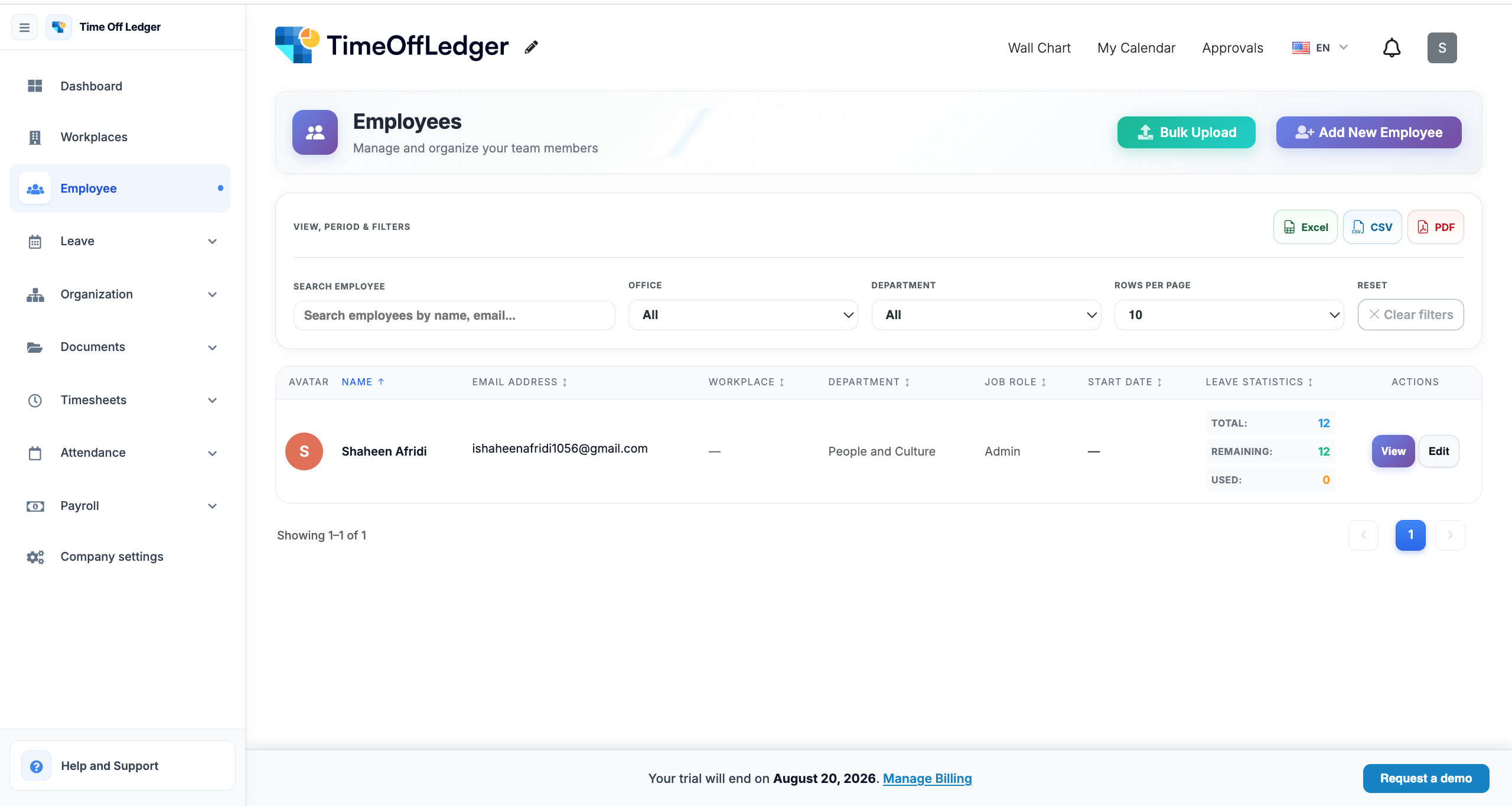
- Navigate to Employees from the main menu.
- Locate the employee you want to edit.
- Click on the employee’s profile.
- Select Edit.
- Update the required information.
- Click Save Changes.
Your changes will take effect immediately.
Information You Can Update
Depending on your organization’s configuration, you may be able to edit:
- Full name
- Job title
- Work email address
- Department
- Manager
- Employee role
- Leave policy
- Employment status
- Start date
- Profile photo
Some fields may be restricted to maintain historical accuracy or comply with company policies.
Updating an Employee’s Manager
Assigning the correct manager ensures leave requests are sent to the appropriate approver.
To update a manager:
- Open the employee’s profile.
- Find the Manager field.
- Select the new manager from the list.
- Save your changes.
Future leave requests from the employee will be routed to the newly assigned manager.
Changing Departments
If an employee moves to a different department:
- Open the employee profile.
- Update the Department field.
- Save the changes.
Department changes help keep reports, team calendars, and employee lists organized.
Updating Leave Policies
If an employee changes roles or becomes eligible for a different leave entitlement, you may need to assign a new leave policy.
To update the leave policy:
- Open the employee profile.
- Select the appropriate leave policy.
- Save your changes.
The employee’s leave balances may be recalculated based on the new policy, depending on your organization’s configuration.
Best Practices
To keep employee records accurate:
- Review employee information regularly.
- Update records immediately after organizational changes.
- Verify manager assignments after restructuring.
- Ensure employees are assigned the correct leave policy.
- Double-check email addresses before saving.
Common Issues
Unable to Edit an Employee
If you cannot edit an employee’s information:
- Confirm you have Administrator permissions.
- Check whether the employee account has been deactivated.
- Refresh the page and try again.
Incorrect Leave Balance After Updating
If leave balances appear incorrect after assigning a new leave policy, review the employee’s leave entitlement and policy settings. Changes to leave policies may affect available balances.
Employee Not Appearing in the List
If you cannot find an employee:
- Use the search feature.
- Check if filters are applied.
- Verify whether the employee has been deactivated.